What You Actually Need to Start
You need three things: a printer, filament, and a slicer (free software). That's it. Don't let YouTube reviews convince you that you need 47 accessories before your first print. Get a printer, plug it in, level the bed, and print something.
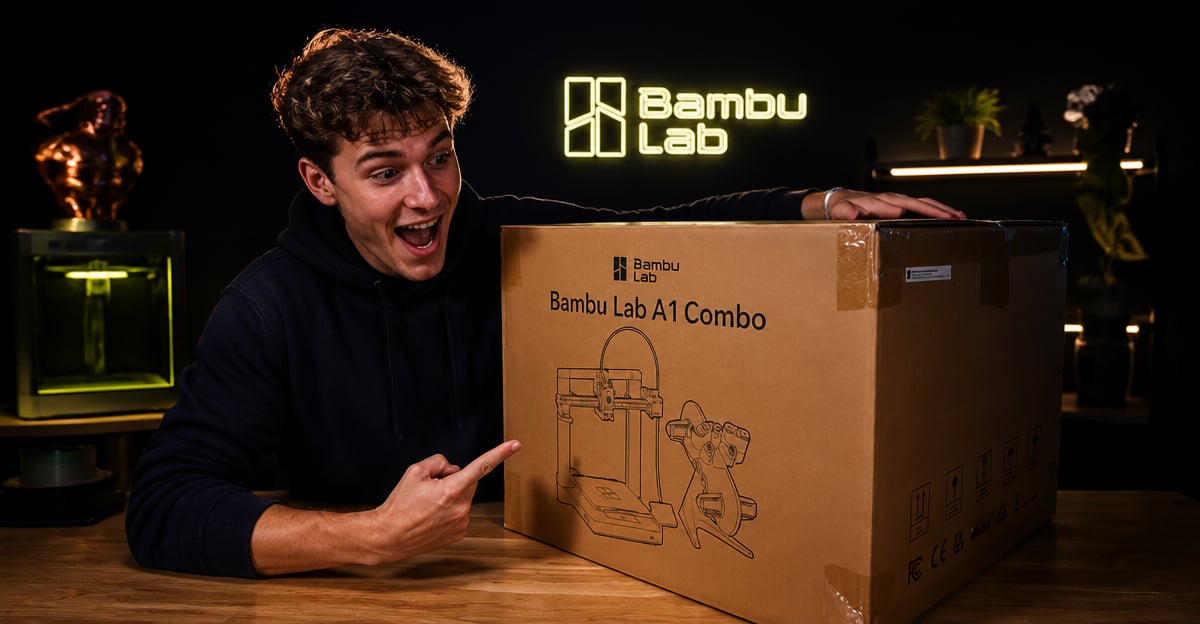
Printer: For beginners in 2026, the Bambu Lab A1 Mini ($200) is the no-brainer recommendation. Auto bed leveling, fast speeds, reliable out of the box. If you want a larger build volume, the Creality Ender-3 V3 ($200) or Bambu Lab A1 ($300) are solid. If you want to tinker and learn, a Creality Ender-3 S1 ($180-220 on sale) teaches you more about how printers work.
Filament: Start with PLA. Buy one roll of a brand-name PLA — eSUN PLA+ ($18/kg), Hatchbox PLA ($22/kg), or Bambu Lab PLA Basic ($15/kg). Don't buy the cheapest no-name filament for your first roll. Bad filament causes problems that beginners blame on the printer.
Slicer: Bambu Studio (for Bambu printers) or OrcaSlicer (for everything else). Both free. Cura still works but OrcaSlicer has become the community standard for its better defaults and speed.
Unboxing to First Print: Step by Step
- Assemble the printer — most modern printers come 90% assembled. Follow the included instructions. Takes 15-30 minutes
- Level the bed — auto-level printers do this for you. Manual printers: use the paper test. Slide a sheet of paper between nozzle and bed at each corner. You want slight friction, not a tight grip and not free movement
- Load filament — feed the end into the extruder, push until it grabs and starts extruding from the nozzle. You should see a thin strand coming out
- Download a test file — most printers include a pre-sliced test file on the SD card or in the app. Print that first. It's specifically designed to work
- Watch the first layer — this is the most important part of any print. The first layer should be squished slightly onto the bed, with lines that touch each other without gaps. If it looks like spaghetti, your nozzle is too high. If it's see-through thin, it's too low
Understanding the Slicer
A slicer converts a 3D model (.STL or .3MF file) into instructions your printer understands (G-code). You import the model, adjust settings, click "slice," and save the output to SD card or send it over Wi-Fi.
Settings that matter for beginners:
- Layer height: 0.2mm is the standard default. Smaller = smoother but slower. Don't go below 0.12mm until you're comfortable
- Infill: 15-20% is fine for most prints. It's the internal structure density. 100% is solid (heavy, slow, usually unnecessary)
- Supports: If your model has overhangs greater than 45°, you need supports. The slicer can generate them automatically. Remove them after printing
- Speed: Start at the slicer default. Modern printers handle 80-150mm/s easily. Older Ender-3s are happier at 50-60mm/s
- Temperature: 200-210°C nozzle for PLA, 60°C bed. These defaults work 90% of the time
Your First Real Print
After the test print succeeds, download something fun. Go to Printables.com, Thingiverse.com, or our store at 42prints.com and pick a model that looks cool. A print-in-place flexi animal is a great second print — it's impressive, fun to show people, and tests your printer's capabilities.
Import the .STL into your slicer. Use the default PLA profile. Slice it. Send it to the printer. Watch the first 2-3 layers to make sure it's sticking. Then walk away — checking every 5 minutes won't make it print faster.
Common First-Timer Problems (and Quick Fixes)
- Print not sticking to bed: Clean the bed with isopropyl alcohol (90%+). Make sure the nozzle is close enough. Use a brim in slicer settings for small parts
- Spaghetti mess: The print detached mid-print and the nozzle kept extruding into air. Fix bed adhesion first
- Stringing (thin wisps between parts): Lower nozzle temp by 5°C. Enable retraction in slicer (should be on by default)
- Layer shifting (print looks offset): Belts are loose. Tighten them. They should twang like a guitar string
- Under-extrusion (gaps in walls): Nozzle might be partially clogged. Do a cold pull — heat to 200°C, push filament through, let it cool to 90°C, pull it out sharply. The blob that comes out pulls debris with it
What to Print Next
After a few successful prints, branch out:
- Calibration prints: Print a temperature tower and a retraction test to dial in your filament settings
- Functional prints: Cable clips, drawer organizers, phone stands. These justify the printer to skeptical family members
- Fidget toys: Articulated animals and fidget toys are crowd-pleasers and great gifts
- Multi-part projects: Models that require assembly teach you about tolerances and fit
Don't try to print a full-size helmet or a 20-hour model in your first week. Start small, build confidence, learn your printer's quirks. Every printer has them.
The Rabbit Hole Ahead
Fair warning: 3D printing is addictive. Within a month you'll be eyeing filament sales, browsing model libraries at midnight, and explaining layer adhesion to confused friends. Within three months you'll have opinions about nozzle materials. Within six months you'll be designing your own models.
Welcome to the hobby. Start with something from our beginner-friendly collection and go from there. Every model includes recommended print settings, so you can focus on having fun instead of troubleshooting.


Ready to Start Printing?
Browse our collection of 3D printable models — from flexi toys to cat masks.
Visit Our Store →